
Column Mapping Freemium
Column Mapping tells QTO how to read each row of your catalog file
(Excel or JSON). For every internal QTO field — code,
description, uom, prices, hierarchy levels — you supply
a mapping value that QTO evaluates against the row to produce the final value.
Mapping values range from a bare column name to a string template that combines
multiple columns, all the way to a math expression that computes a number on the fly.
When you see this dialog
The Column Mapping editor opens from the QTOSetup dialog when you connect a new catalog source. Two paths bring you here:
- Auto-detection covered everything — the mapping is saved silently, but you can re-open the editor from QTOSetup any time to refine it.
-
Auto-detection missed a mandatory field — the editor opens
automatically so you can fill in what auto-detect could not infer from the
column headers (typically
code,description, anduom).
The dialog shows one row per internal QTO field. Each row has a formula box, an "Insert column" dropdown that lists every header found in your source, and a live preview that re-renders as you type. The preview uses the first non-header data row of your file as the sample. Mapping changes are not committed until you click Save Mapping.
The dialog has two tabs. The Mapping tab (below) maps each catalog column to a QTO field; the Labor & Price list tab holds the default labor rate and the price-list metadata. The Cancel / Save Mapping footer is shared by both.
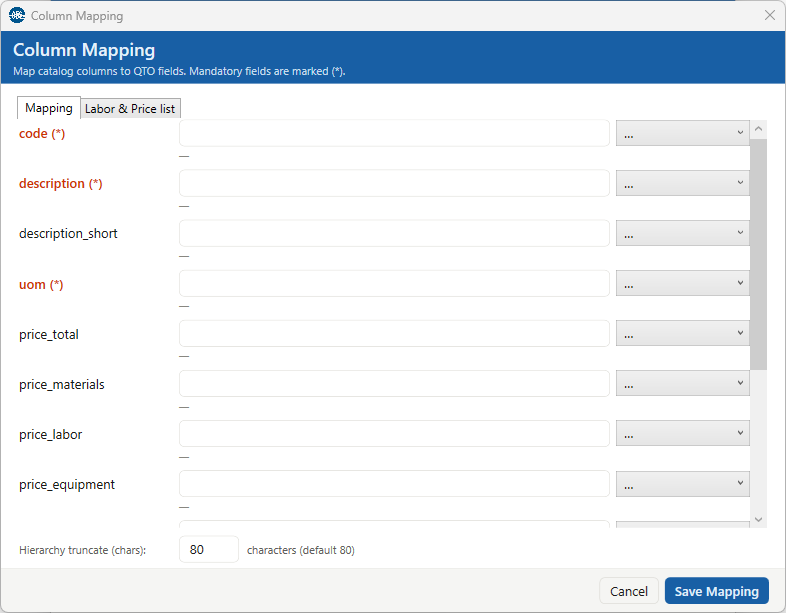
code, description, uom — are marked with a red (*).The four forms
QTO classifies every mapping value into one of four forms by inspecting its syntax:
| # | Form | Triggered by | Example |
|---|---|---|---|
| 0 | Empty | Blank / whitespace-only field | (nothing typed) |
| 1 | Bare column name | No {, no ", no math operator |
Codice |
| 2 | String template | Contains {…} placeholders and/or "…" quoted literals,
no math operators outside quotes |
{Capitolo}" | "{Voce} |
| 3 | Math expression | Contains + - * / or a function call outside any quoted literal |
round({price_total} * 1.22, 2) |
The classification is purely syntactic — QTO never tries to "guess" the form from context. If you type a math expression, you get a number; if you type a template, you get a string; if you type a bare name, you get a direct cell lookup.
Form 1 — Bare column name
The simplest mapping is a single source column header. QTO looks up the value of that column in the current row and returns it verbatim (trimmed of leading and trailing whitespace).
- The lookup is case-insensitive:
codiceandCodiceresolve to the same column. - If the column does not exist in the source, the mapping returns empty for
every row. The live preview shows an empty result; ingestion silently
records
null. - If the cell is empty for a specific row, that row's mapped value is empty.
Form 2 — Templates with placeholders and literals
Templates combine values from multiple columns with fixed text. Two building blocks make up every template:
-
Placeholders —
{ColumnName}is replaced with the value ofColumnNamein the current row, after the same trim-and-lookup logic as Form 1. -
Quoted literals — every character that is not part of a
placeholder, including spaces and separators like
|,/,-, must be wrapped in double quotes. Whitespace between placeholders and literals is ignored.
| Template | Row data | Result |
|---|---|---|
{Capitolo}" | "{Voce} |
Capitolo = "Strutture", Voce = "Cls C25/30" |
Strutture | Cls C25/30 |
{A}{B} |
A = "foo", B = "bar" |
foobar (placeholders glue without separator) |
"He said ""hi"" to "{Name} |
Name = "Sandro" |
He said "hi" to Sandro (CSV-style "" → ") |
Empty placeholder cleanup
When a {Placeholder} resolves to empty for a given row, QTO drops
the placeholder and one adjacent separator-only literal (a quoted
literal whose content is only spaces, pipes, slashes, or dashes). Then it
collapses runs of repeated separators to one and trims leading or trailing
separators. If the result is empty, the mapping returns null.
| Template | Row data | Result |
|---|---|---|
{Capitolo}" | "{Voce}" | "{Articolo} |
all three columns populated | Strutture | Cls C25/30 | 001 |
Voce empty, others populated |
Strutture | 001 (one " | " dropped along with the empty placeholder) |
|
{A}" | "{B} |
both A and B empty |
null (empty result) |
Quoted literals are required for separators. Templates like
{A} | {B} (unquoted pipe) are rejected as parse errors. Wrap the
separator: {A}" | "{B}. Whitespace between tokens is fine and
ignored — it is the unquoted printable separators that the parser refuses.
Form 3 — Math expressions
A mapping value becomes a math expression as soon as it contains an arithmetic
operator (+ - * /) or a function call (name() outside
any quoted literal. Each {ColumnName} placeholder is resolved to
the parsed numeric value of that column in the current row, the expression is
evaluated, and the result is rendered as a number.
Operators
Addition +, subtraction -, multiplication *,
division /, parentheses for grouping, and unary minus for negation
(-{x}). Standard precedence applies: * and /
bind tighter than + and -, parentheses override.
Functions
Function names are matched case-insensitively (ROUND, Round, round all work).
| Function | Arity | Behavior |
|---|---|---|
round(x) |
1 | Rounds to the nearest integer using banker's rounding (see note below). |
round(x, n) |
2 | Rounds to n decimal digits. n must be an integer literal in [0, 15]. |
abs(x) |
1 | Absolute value. |
sqrt(x) |
1 | Square root. Errors on negative input. |
min(a, b, …) |
≥ 2 | Smallest of the arguments. |
max(a, b, …) |
≥ 2 | Largest of the arguments. |
Output format and decimal width
Math results are rendered with invariant-culture formatting (decimal point, no thousands separator). The number of decimal digits shown depends on the shape of your expression:
-
Top-level
round(x, n)— when the outermost call isround(value, n)withnan integer literal, the output is rendered with exactlyndecimal digits, including trailing zeros.round({Price}, 2)onPrice = "123.4"gives123.40, not123.4. -
Everything else — bare arithmetic,
abs,sqrt,min,max, 1-arground, or expressions whereroundis nested inside another operator (round({x}, 2) * 1.04) — the output uses the minimum digits needed to represent the value:4rather than4.0,123.4rather than123.40.
The rule is intentional: wrapping a math expression in round(…, n)
is how you tell QTO the decimal width you want for the field.
Banker's rounding: when a value is exactly halfway between
two integers, round rounds to the nearest even integer.
So round(2.5) returns 2 (not 3) and
round(3.5) returns 4. This is the default rounding
mode in many programming languages and is statistically unbiased over large
datasets, but it can surprise users coming from Excel, where ROUND(2.5)
returns 3. The same rule applies at any decimal position:
round(2.45, 1) = 2.4.
Number formats in source cells
QTO tolerates an Italian-style decimal comma in source cells: a value like
"1,5" in a numeric column is read as 1.5 in math
expressions. This is convenient for catalogs exported from spreadsheets
saved with Italian locale.
Common patterns
| Goal | Mapping |
|---|---|
| Direct column copy | Codice |
| Build a description from chapter + item | {Capitolo}" | "{Voce} |
| Three-level hierarchy with auto-cleanup of empty middle level | {Capitolo}" / "{Voce}" / "{Articolo} |
| Price with VAT, two decimals | round({price_total} * 1.22, 2) |
| Safety surcharge added to base price | round({price_total} + {price_safety}, 2) |
| Hourly cost as max of two columns | round(max({labor_internal}, {labor_external}), 2) |
| Sign-flip a stored discount | -{discount} |
Live preview and color coding
The preview cell next to each mapping row re-renders on every keystroke. The color tells you the state of the result:
| Color | Meaning |
|---|---|
| Gray | Valid result. Long strings are truncated to about 120 characters in the preview, but the full value is saved. |
| Orange | Empty result for the current sample row. The mapping itself is syntactically valid — your sample row just happens to have empty values for the referenced columns. |
| Red | Error. Hover for the full message in the tooltip. See "Troubleshooting" below for common causes. |
The preview is purely visual — nothing is committed until you click Save Mapping. Validation runs again on save: the three mandatory fields must have a non-empty mapping, and templates or math expressions that reference unknown columns are flagged before the dialog closes.
Hierarchy truncate
At the bottom of the Mapping tab, Hierarchy truncate (chars) caps how many characters
of the three hierarchy fields (super_chapter, chapter, sub_chapter)
are kept for display in dropdowns and lists. Longer values are truncated to this width; the full value
is still stored and used for search and export. The default is 80.
Labor & Price list tab
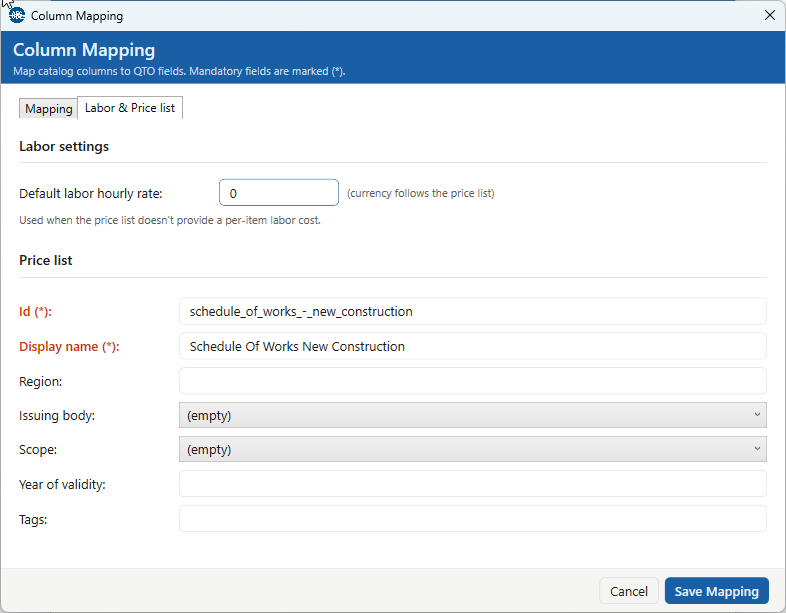
Labor settings
Default labor hourly rate — used when the price list doesn't provide a per-item labor
cost. The currency follows the price list; the default is 0.
Price list metadata
This describes the catalog you're loading. Two fields are mandatory:
| Field | Notes |
|---|---|
Id (*) | Stable identifier of the price list (normalised to lower-case with underscores). Once the price list exists, it is locked when you re-open the editor to edit it. |
Display name (*) | Human-readable name shown in QTOSetup's Price lists tab and in QTOTag's price-list picker. |
| Region | Free text, e.g. Toscana, Lombardia, Bayern. |
| Issuing body | The organisation that issued the price list (chosen from a dropdown). |
| Scope | The price list's scope (chosen from a dropdown). |
| Year of validity | An integer year (1990–2050), or empty. |
| Tags | Comma-separated labels, e.g. heritage, public-works. |
Auto-detection
When you first connect a new catalog source, QTO scans the source's column
headers and tries to fill in each internal field with a bare column-name
mapping. Matching is case-insensitive and treats underscores and spaces as
equivalent (so super_chapter and Super Chapter
both match the super_chapter field).
The recognized header aliases include both English and Italian variants for
the three mandatory fields (code, description,
uom), the optional description_short, all six price
fields, and the three hierarchy levels (super_chapter,
chapter, sub_chapter). Auto-detection only produces
bare-name mappings — templates and math expressions are always manual.
If every mandatory field is auto-detected, the mapping is saved silently and you can move on. If any mandatory field fails to auto-detect, the editor opens so you can complete the mapping.
Troubleshooting
"Column 'X' not found in source row" in red
A placeholder {X} references a column header that does not exist
in the source file. Check spelling against the "Insert column" dropdown,
which lists every header QTO actually sees. The lookup is case-insensitive,
so capitalization is not the issue.
"Column 'X' value 'abc' is not a number" in red
A math expression placeholder resolved to a non-numeric value. Either the
cell genuinely contains text (in which case math is not the right form for
this field — use a template instead) or the formatting prevents parsing.
Italian decimal commas are accepted (1,5 → 1.5).
"Division by zero" in red
The denominator in a math expression evaluated to zero for the sample row.
Either guard against it in the formula (no built-in if yet —
check your source data) or revisit which column you are dividing by.
round shows fewer decimals than I expect
Trailing zeros are only preserved when round(x, n) is the
top-level call of your math expression. round({x}, 2) * 1
and {x} + 0 use the minimum-digits format. Wrap the whole
expression in round(…, n) as the outermost call to lock in
the decimal width.
round(2.5) returns 2 — is this a bug?
No, that is banker's rounding (round half to even). Values exactly halfway between two integers go to the nearest even one. The behavior is consistent across the whole formula engine and matches the default of most programming languages. See the "Banker's rounding" note above for details.
"Mandatory field unmapped" warning blocks Save
The three mandatory fields are code, description,
and uom (marked with a red (*)). Each must have a
non-empty mapping before the dialog will close. Use the "Insert column"
dropdown to populate them. description_short and the price
fields are optional.